1. Status
Check official project and FFXIV service notices. If many users are affected, wait instead of changing local files.
Focused startup troubleshooting
This message usually means XIVLauncher could not complete an early online version check before the login screen. Start with service status, Windows date and time, and a clean network test. Do not delete random FFXIV folders or download a replacement launcher from a mirror.
Close XIVLauncher, confirm that Windows date, time, and time zone are correct, check whether the official project or FFXIV services are having an outage, then retry on a normal connection without a VPN or filtering proxy. If the message remains, review antivirus or firewall blocks and reinstall only from the official Goatcorp GitHub release.
This guide verified the latest official Windows release as 7.0.20 on July 30, 2026. The installer is XIVLauncher-win-Setup.exe, published December 6, 2025, with a GitHub asset size of 114,658,090 bytes. A newer official release should always take priority over this static check.
Identify the failing stage
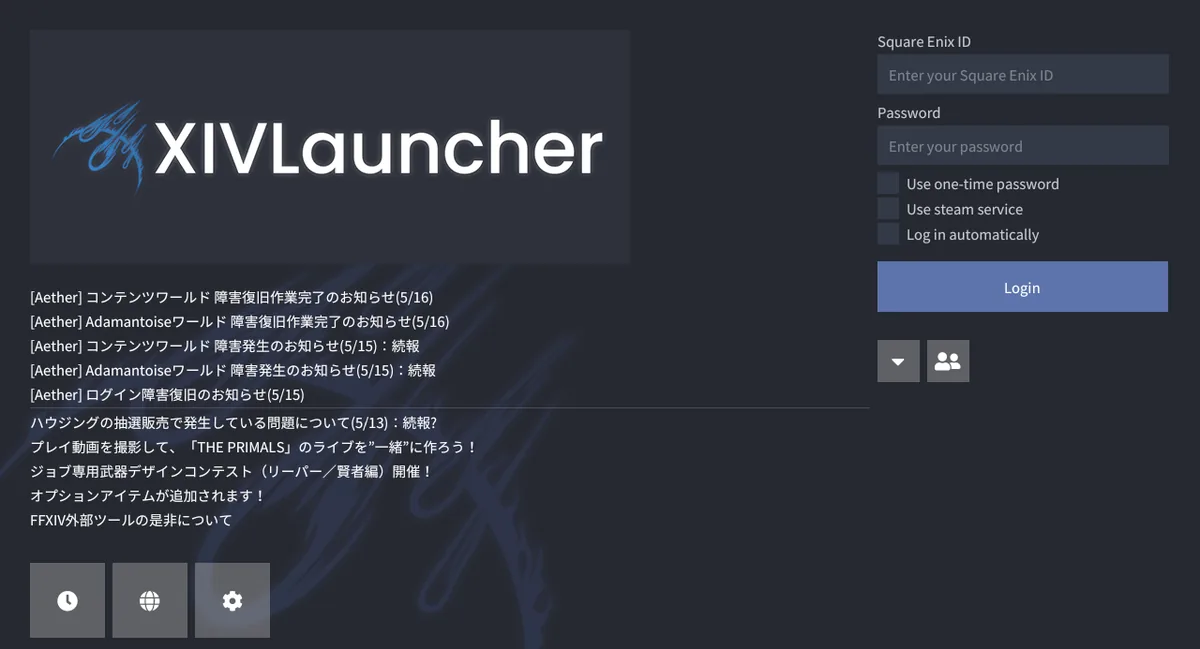
XIVLauncher checks its startup or boot information before it can present the normal login flow. If that request cannot be completed or trusted, the launcher may stop with the boot version message instead of opening the screen shown here.
The wording is specific to XIVLauncher. It is not automatically the same problem as the official FFXIV launcher message about being unable to complete a game version check. The two errors can share network causes, but their repair steps and files are not interchangeable.
Change one variable at a time. This order starts with reversible checks and leaves reinstalling for later.
Check official project and FFXIV service notices. If many users are affected, wait instead of changing local files.
Enable automatic Windows time and time zone, then sync the clock. Incorrect time can break secure web requests.
Retry without a VPN, proxy, DNS filter, or captive portal. A phone hotspot is a useful temporary comparison test.
Review security blocks, then repair or reinstall from the official GitHub release if the earlier checks pass.
| What you observe | Likely area | Safe next action |
|---|---|---|
| The error started for many players at the same time | Remote service or release infrastructure | Check official notices and wait before reinstalling. |
| Websites show certificate warnings or the PC clock is wrong | System date, time zone, or certificate validation | Correct and sync Windows time, then restart XIVLauncher. |
| It works on a hotspot but not the normal network | Router, DNS, proxy, VPN, or network filtering | Disable filters temporarily and compare DNS or router behavior. |
| The executable was quarantined or blocked after an update | Antivirus or application control | Confirm the official source, inspect security history, and restore or allow only the verified file. |
| Only this installation fails after all network checks | Damaged launcher installation or updater state | Download the official setup executable and perform a repair or clean reinstall. |
Repair from a trusted source
A reinstall is useful only after status, time, and network checks. Download XIVLauncher-win-Setup.exe from the Goatcorp FFXIVQuickLauncher release page. Do not use the JSON metadata files, delta package, or an unrelated third-party installer for a normal Windows reinstall.
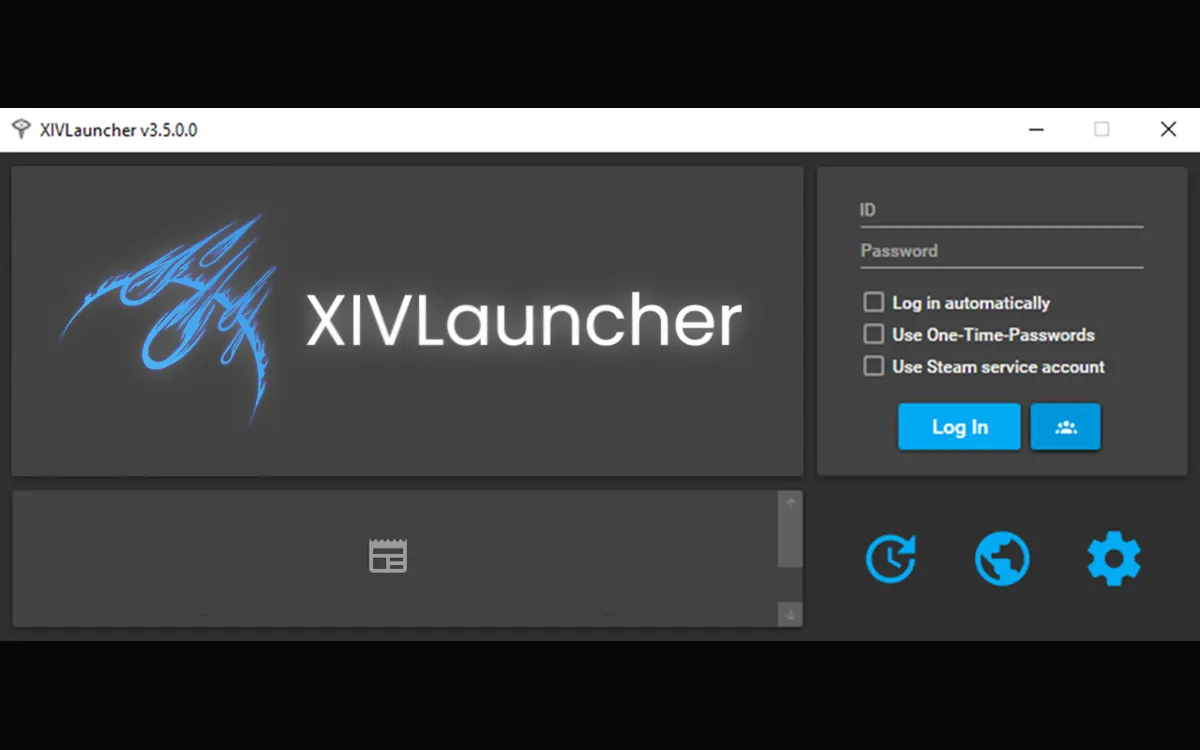
The older interface shown in this screenshot is included to help recognize the product, not to identify the current release. Version numbers visible inside old screenshots are historical and should not be used as download guidance.
A broad search for FFXIV version-check errors often recommends deleting patch folders. Those instructions may target the official game launcher, Wine prefixes, or a different error. They are not a safe default for the XIVLauncher boot version message.
Do not delete your FFXIV installation, saved credentials, plugin configuration, or launcher data unless an official troubleshooting step identifies the exact path and explains the consequence. Back up configuration before any destructive repair.
The XIVLauncher message refers to the custom launcher's own early startup check. Queries such as FFXIV unable to complete version check usually refer to the official Square Enix launcher checking game or patch data. Search engines mix these phrases because both appear during startup, but the page, process, and affected files can differ.
Use this page when the dialog explicitly says XIVLauncher was not able to check the boot version. Use the broader troubleshooting page when the wording is different, the official launcher is open, or the problem begins while downloading game patches.
It means the launcher could not finish or trust an early startup version request. Common areas to check are service availability, Windows time, the network path, security filtering, and the launcher installation.
No. Check status, time, and network conditions first. Reinstalling cannot fix an outage, incorrect system clock, captive portal, or blocked connection.
Yes. A VPN, proxy, filtered DNS service, HTTPS inspection tool, or restricted network can interrupt the request. Test briefly on a plain connection or phone hotspot to compare.
Use XIVLauncher-win-Setup.exe from the official Goatcorp FFXIVQuickLauncher latest release page. Do not choose JSON metadata, RELEASES, or .nupkg files for a normal clean installation.
Not necessarily. The errors can share network causes, but the XIVLauncher boot version message belongs to the custom launcher. Confirm the exact wording and active launcher before deleting or repairing files.