Apple silicon Mac
Use the normal current XIV on Mac release and begin with default graphics settings. Performance varies by chip, memory, resolution, and game settings.
macOS launcher guide
There is no native macOS build in the current Goatcorp XIVLauncher release. Mac players should use XIV on Mac, a separate community project built for macOS. This guide explains the official source, current verified version, installation path, and the difference between the two launchers.
The phrase ‘XIVLauncher for Mac’ usually means a Mac-friendly way to launch Final Fantasy XIV with features such as Dalamud support. The Windows file XIVLauncher-win-Setup.exe is not a macOS installer and should not be treated as one.
For macOS, use the official XIV on Mac project. It is separate from Goatcorp's Windows and Linux XIVLauncher, so version numbers, support instructions, download files, and troubleshooting steps are different.
macOS launcher guide
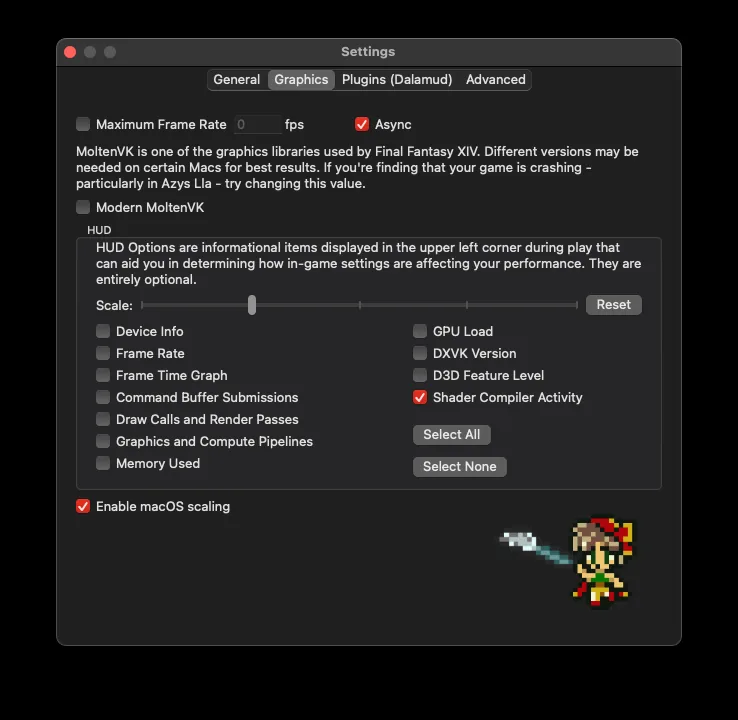
XIV on Mac has its own macOS settings window for graphics, plugins, scaling, frame-rate information, and compatibility options. This is a real screenshot from the official XIV on Mac FAQ, not a generated mockup.
Start with default settings. Change graphics or compatibility options only when a specific problem requires it, and note the previous value so you can reverse the change.
| Recommended Mac project | XIV on Mac |
|---|---|
| Latest verified version | 5.4.2 |
| Release date | May 30, 2026 |
| Official archive | XIV on Mac5.4.2.tar.xz |
| Archive size | 64,978,952 bytes (about 62.0 MiB) |
| Platform | macOS |
| Windows XIVLauncher status | Goatcorp 7.0.20 has no native macOS release asset |
| Checked source | Official XIV on Mac Sparkle appcast, checked July 15, 2026 |
macOS launcher guide
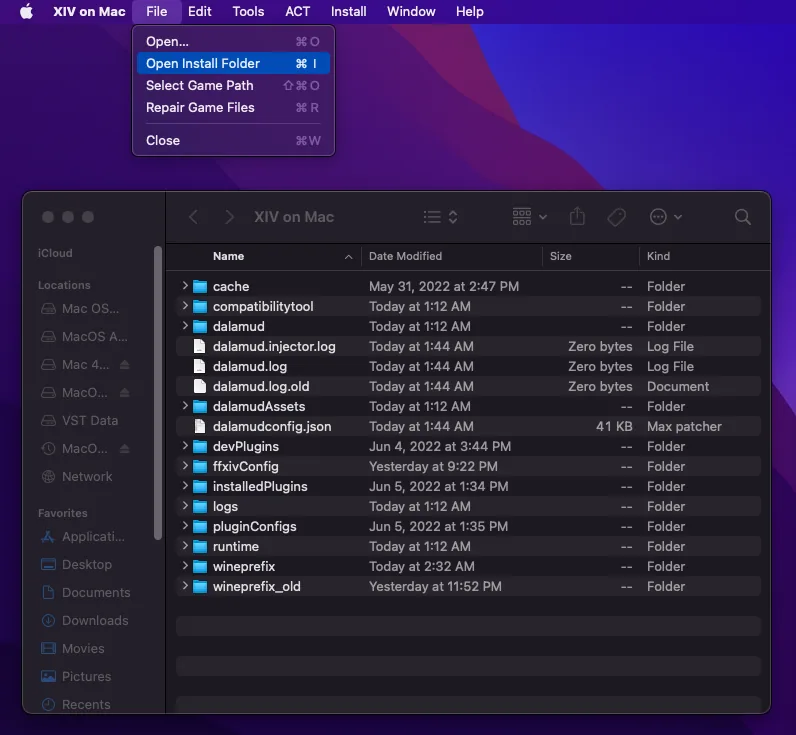
The app includes an Open Install Folder command. The official screenshot shows folders for compatibility tools, Dalamud, plugin configuration, logs, runtime files, and the Wine prefix.
Use this folder when official troubleshooting asks for a log, when you need to back up configuration, or when a plugin must be removed manually. Do not delete the whole directory as a first troubleshooting step.
Use the normal current XIV on Mac release and begin with default graphics settings. Performance varies by chip, memory, resolution, and game settings.
Check the current XIV on Mac requirements and FAQ before downloading. Older Intel hardware can need more conservative settings and may have narrower support.
Use the launcher option for an existing game path. Verify the folder before moving or deleting files, especially if the installation is on external storage.
macOS launcher guide
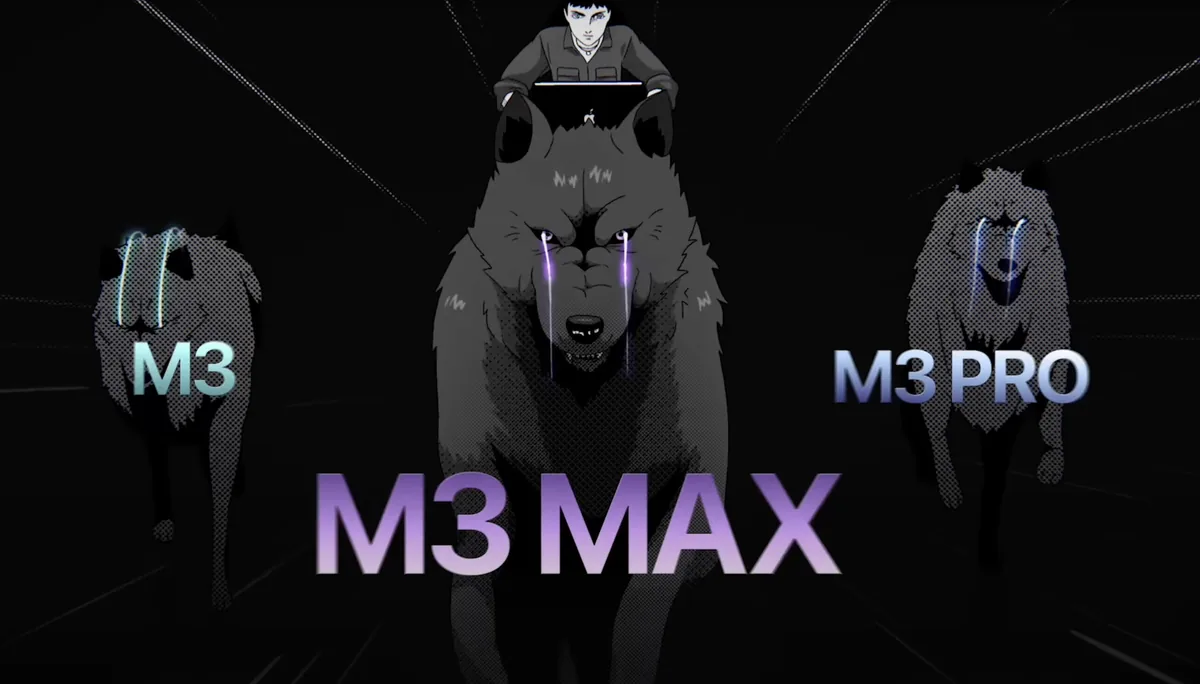
The XIV on Mac site publishes Apple-silicon performance material, including this official M3-family graphic. It shows the project actively targets modern Mac hardware, but it is not a promise that every Mac will reach the same frame rate.
Use the official requirements and FAQ for current support. Resolution, thermal limits, memory pressure, plugins, and game patches can change results even on Macs with the same chip family.
XIV on Mac, XIVLauncher, Dalamud, and plugins are third-party tools. They are not the official Square Enix launcher, and this guide cannot promise account safety or uninterrupted compatibility after every FFXIV update.
Use official project sources, keep your Square Enix credentials and one-time-password practices unchanged, and avoid unknown plugin repositories or repackaged downloads. The lowest-risk choice remains the official game launcher and official support channels.
Most avoidable problems come from using the wrong platform file, mixing old instructions with a new release, or changing several compatibility settings at once.
The current Goatcorp release does not include a native macOS asset. Mac players normally use the separate XIV on Mac project.
The official Sparkle appcast checked July 15, 2026 lists version 5.4.2, published May 30, 2026. Always prefer a newer official release if one appears.
It is not the recommended path. XIV on Mac packages the Mac-specific launcher and compatibility workflow, so start there instead of adapting the Windows installer.
The app includes Dalamud-related settings and plugin support, but availability can change after game updates. Test the game without plugins first when troubleshooting.
Yes. The launcher provides an existing-installation path. Confirm the folder carefully and keep a backup of important configuration before moving files.
The official FAQ includes free-trial guidance. Follow the current install prompt and official documentation because account and game-install options can change.