Account
Confirm the Steam or standalone license and use the matching login route. Keep one-time-password details private and never paste account secrets into a public support thread.
Linux platform guide
This FFXIV Linux guide explains the safe XIVLauncher route instead of downloading the Windows installer and guessing through compatibility layers. It covers account checks, setup steps, and troubleshooting.
If you want to play FFXIV on Linux, start with the maintained official XIVLauncher Linux instructions. Do not treat XIVLauncher-win-Setup.exe as the normal desktop Linux installer, and do not mix a Windows tutorial with a Steam Deck tutorial unless you understand which step is platform-specific.
The order is: confirm your FFXIV account and license, read the current Linux guide, install the launcher through the recommended path, launch the base game once, and only then add Dalamud or plugins. That gives you a clean baseline when an update or plugin causes trouble.
A platform boundary worth checking
Searches for ffxiv linux often combine several questions: whether the game can run, whether XIVLauncher works, whether Steam or a standalone account is required, and where Dalamud belongs. A useful guide must separate those questions instead of promising that one command fixes every distribution.
Linux gaming changes at more than one layer. Your distribution, graphics driver, Proton or Wine components, game installation, launcher configuration, and plugins can each fail independently. Keeping those boundaries visible is more useful than copying an old command.
Return to the official guide when a game update changes the supported route.
| Setup | Start with | What to verify | Avoid |
|---|---|---|---|
| Desktop Linux | The official Linux/XIVLauncher guide | Distribution instructions, graphics stack, game path, and login flow | Using a Windows installer as the only plan |
| Steam Deck | The official Steam Deck section | Steam account ownership, storage location, controller flow, and desktop-mode steps | Copying desktop commands without checking the Deck workflow |
| Standalone FFXIV account | The account path supported by the current guide | Your license and launcher login match the installed game | Assuming a Steam license and standalone license are interchangeable |
| Steam FFXIV account | The Steam-aware setup path | The game is installed and launched through the expected Steam context | Moving files before confirming the account boundary |
| Plugin-enabled setup | A clean base-game launch first | Dalamud and plugins are added only after the launcher works | Blaming Linux for a plugin-only failure |
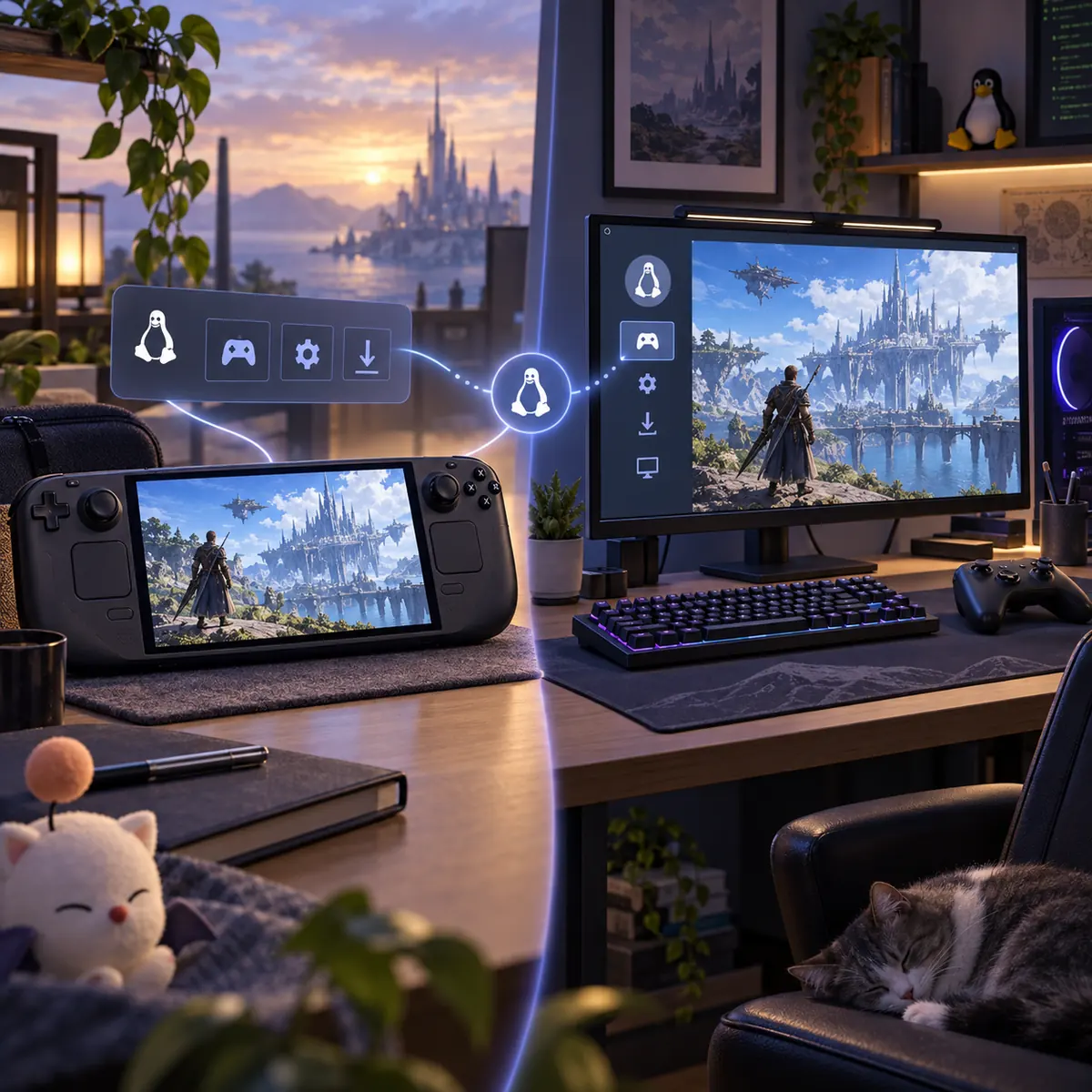
Desktop Linux and Steam Deck are related, not identical
Steam Deck users normally need to think about desktop mode, Steam library locations, controller-friendly launch behavior, and how the game is added back to Steam. Desktop Linux users may instead need distribution packages, a desktop shortcut, graphics-driver checks, or a manually selected game prefix. The shared keyword is Linux; the practical path is not identical.
If you switch between Steam and standalone service accounts, do not use the same account assumptions for both. A launcher can open successfully and still reject the login or show the wrong installation because the license context does not match the game files.
The safest setup is reversible. Keep the first launch clean, keep the original game directory intact, and change one variable at a time. That approach also makes it easier to decide whether a problem belongs on the Linux platform page, the general troubleshooting page, or the patch-download error guide.
A working Linux launcher is the baseline. These checks keep a platform question separate from a plugin question.
Confirm the Steam or standalone license and use the matching login route. Keep one-time-password details private and never paste account secrets into a public support thread.
Verify the real library, mount, or prefix location. If the launcher cannot find the game, check the path before downloading a second copy or deleting configuration.
Add optional components only after a clean launch. If a plugin causes the next failure, you have a clear comparison instead of a mixed diagnosis.
Start with the last visible checkpoint. If the launcher does not open, inspect the launcher source, permissions, compatibility components, and recent package changes. If the launcher opens but cannot find the game, inspect the library path and mounted storage. If the game reaches a window and then closes, compare graphics drivers, overlays, and the selected compatibility layer.
If the problem began immediately after a game patch, test without optional plugins and check the current official project notes before deleting files. If the message specifically says that patch files cannot be downloaded, use the dedicated patch-file troubleshooting page; that is a network, storage, permissions, or service boundary rather than proof that Linux is unsupported.
Keep the first failed test reproducible. Note what changed and whether a clean launch works. Do not report private tokens, full account identifiers, or unredacted paths. A short redacted log and a precise failure layer are more useful than a generic screenshot.
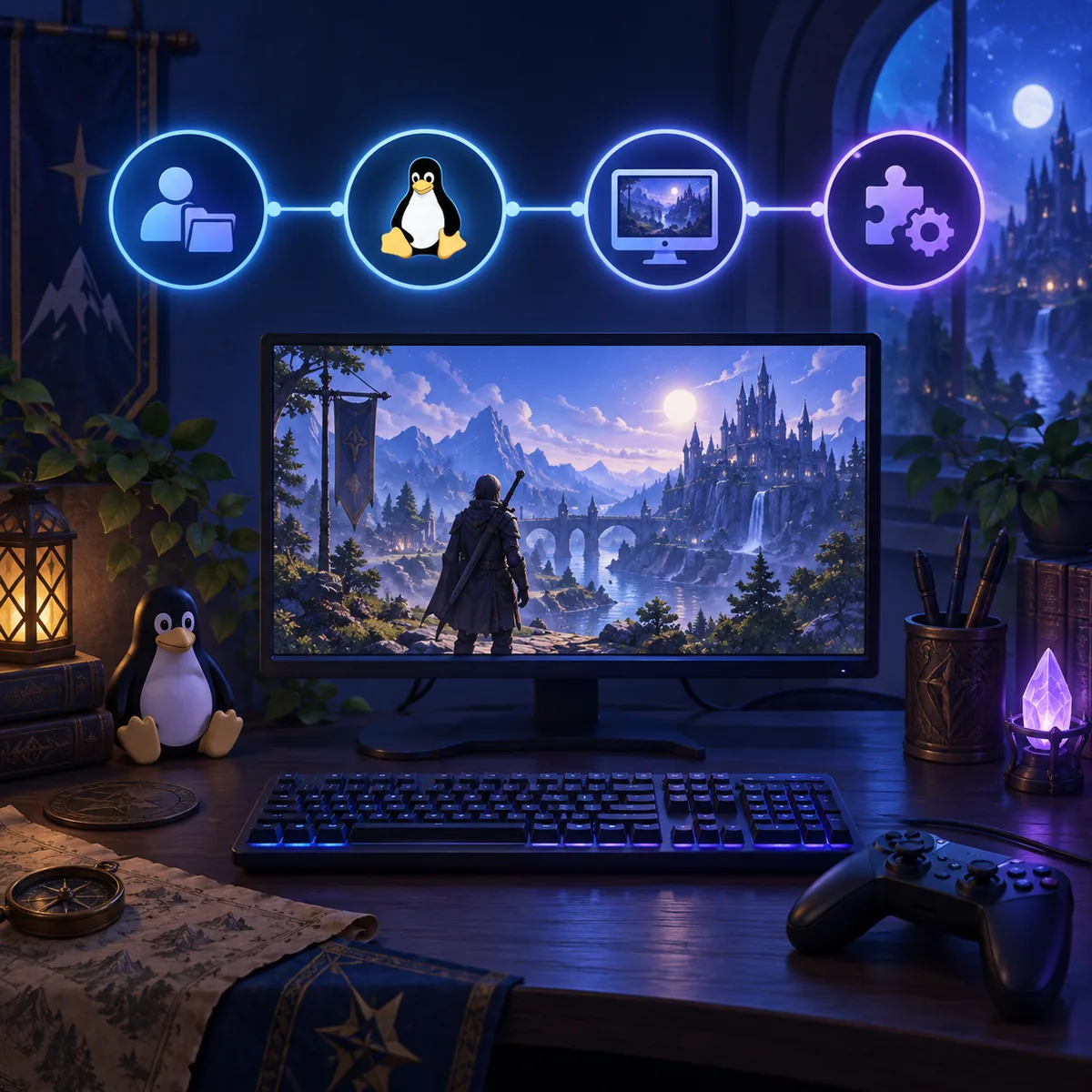
Troubleshooting boundary
A platform guide cannot promise that every Linux distribution behaves the same. It can, however, give you a reliable order: account and license, game location, launcher startup, game launch, then optional plugins. Each successful checkpoint narrows the next question.
If you change the launcher, graphics stack, game path, and plugin list at the same time, a later success does not tell you what fixed the problem. Make one controlled change, launch once, and record the result. This is slower than a blind reinstall but faster than losing the evidence you need.
When the current official guide changes, follow its newer instructions even if an older article or video uses different package names. This page explains the decision boundaries; it is not a replacement for the maintained project documentation.
Most difficult Linux setup problems begin with a reasonable step applied to the wrong platform, account, or layer. Check these first.
XIVLauncher, Dalamud, and plugins are third-party tools. Compatibility can change after an FFXIV update, and this guide cannot promise account safety or uninterrupted service. Use official project sources, keep credentials private, and understand the rules for your account.
Use the Linux path only when it fits your device and needs.
FFXIV can be run on Linux through the maintained Linux setup path, but the exact steps depend on the distribution, device, account type, game location, and current compatibility guidance. Start with the official XIVLauncher Linux documentation.
The project documents a Linux route for XIVLauncher. Use that route instead of treating the Windows installer as the normal Linux setup, and check the current guide before copying older commands.
They share the Linux platform but are not identical workflows. Steam Deck adds desktop-mode, Steam library, controller, and storage checks, while desktop Linux can require distribution-specific packages or paths.
Do not assume they are interchangeable. Confirm which license and login context your game installation uses, then follow the matching launcher instructions.
No. Launch the base game first, confirm the clean path works, and add optional components gradually. That gives you a useful comparison if a plugin or game update causes a failure.
First separate the patch-download symptom from the platform question. Check the current service status, storage, network, permissions, and security boundaries, then use the dedicated FFXIV patch-file troubleshooting guide rather than deleting the whole installation.