What is the shortcut to open XIVLauncher plugins?
With FFXIV launched through XIVLauncher and Dalamud loaded, enter /xlplugins in the in-game chat. It opens the plugin-management window; it is not a desktop shortcut or Windows Run command.
Troubleshooting guide
If you searched for “XIVLauncher plugins locations”, first decide whether you mean the plugin window, the chat command that opens it, or the local files on disk. These are different paths, and mixing them up can make a simple Dalamud problem harder to diagnose.
The normal plugin window appears inside FFXIV after the game has been launched through XIVLauncher with Dalamud available. In the game chat, type /xlplugins to open the plugin installer and installed-plugin list. If the command does nothing, check whether Dalamud loaded before changing files.
Do not treat the plugin window, the Dalamud settings window, and the plugin cache folder as interchangeable. Use the user interface and official FAQ for normal fixes; only inspect local folders when a specific diagnostic step requires it.
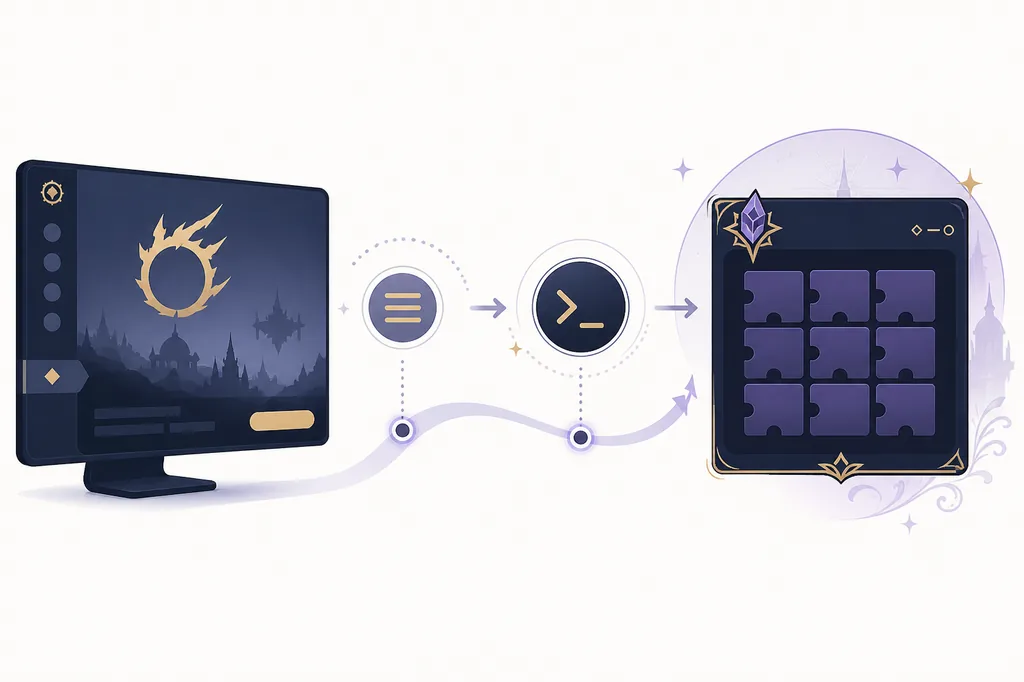
Three meanings of location
For most players, the useful location is the in-game Dalamud window rather than a Windows folder. Open the game through the launcher, wait for the Dalamud notification or menu to finish loading, then use /xlplugins. This is the safest way to install, update, disable, or inspect a plugin.
The phrase can also mean a keyboard shortcut or a file path. The shortcut is usually the /xlplugins chat command; the file path depends on the platform and installation configuration. A path found in a forum post may be stale, different for Steam Deck, or unrelated to the active game profile.
| Command | Use it for | Important boundary |
|---|---|---|
| /xlplugins | Open the plugin installer and installed-plugin list. | It does not repair a launcher that never loaded Dalamud. |
| /xlsettings | Open Dalamud settings, including interface and developer options. | It is not a shortcut to a Windows folder. |
| /xlhelp | Show available Dalamud help or command information. | The displayed commands can vary with the installed build. |
| /xldev | Open developer-oriented Dalamud controls when available. | Use only when a documented diagnostic step calls for it. |
| /xlplugins reload | Request a plugin reload in builds that support the subcommand. | Do not assume every command variant is available on every build. |
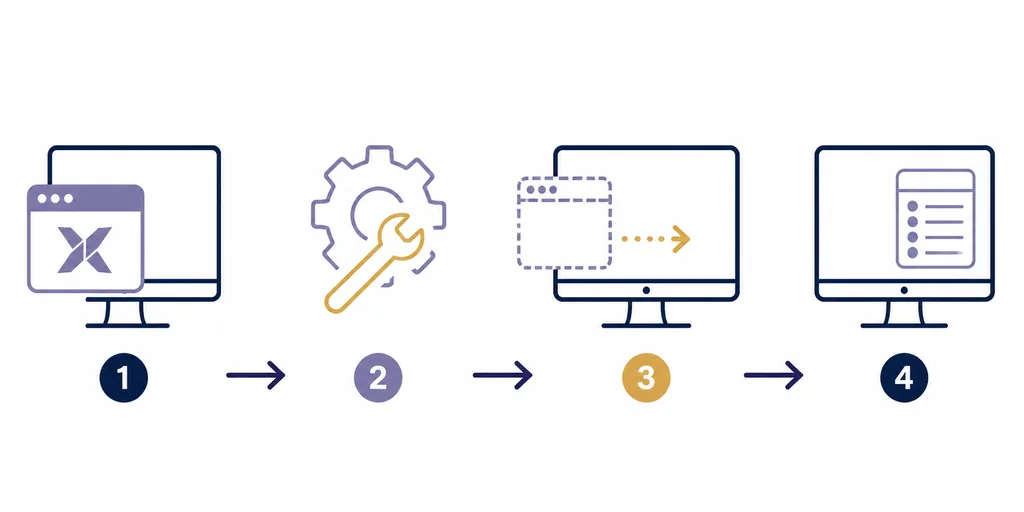
Window recovery
A plugin window can appear to disappear after a monitor change, resolution switch, Remote Desktop session, or Steam Deck display change. That is usually a saved window-position problem, not proof that the plugin vanished.
Open /xlsettings, look for the Dalamud settings area, and open Developer Options if that section is present. Use the reset-window-position control described by the current official FAQ or build. The wording can change, so follow the label shown in your installed version instead of copying an old screenshot.
After resetting positions, reopen /xlplugins. If only one plugin window remains broken, disable that plugin and test the base Dalamud window first. This narrows the problem without removing the entire plugin configuration.
Search results often mix the question “where are XIVLauncher plugins located?” with instructions for locating DLL files or cache folders. Those are different intents. The plugin window is the place to manage a plugin; the local folder is implementation data that can be recreated, moved, or changed by a future update.
Avoid downloading a DLL from a random file host because a post lists a familiar folder. Use the Dalamud installer or the repository documented by the plugin author. If a plugin breaks after a game patch, disable it, read the current project guidance, and keep a small record of the plugin name, version, game patch, and error message.
If the launcher itself will not start, use the general troubleshooting guide. If Dalamud loads but one plugin fails, stay within the plugin-support boundary. If you need the meaning of Dalamud or XIVLauncher, use the explanation page instead of treating a file path as a separate launcher installation.

Platform notes
The command-based workflow is more stable than memorizing a single folder path. Windows users may see familiar AppData-style locations, while Steam Deck and desktop Linux setups can use Proton prefixes, compatibility layers, or paths chosen by the official guide. A Windows path copied into a Steam Deck post is not reliable evidence.
On Steam Deck, open the game and enter /xlplugins with the on-screen keyboard or a configured controller shortcut. If a window is hard to reach, switch to desktop mode or use the display reset guidance, then return to game mode. Keep installation questions on the platform guide and plugin-window questions on this page.
The official Linux and Steam Deck documentation is the right source for installation paths. This page explains how to find the active Dalamud interface after installation; it is not a replacement for the platform setup guide.
XIVLauncher, Dalamud, and community plugins are separate from the official Square Enix launcher and carry third-party software and Terms of Service considerations. Do not use a search result for “plugin location” as a reason to run an unknown executable, replace a DLL, or paste a private-message command.
The safest diagnostic order is: confirm the official launcher source, confirm that Dalamud loaded, try /xlplugins, reset window positions if needed, disable a newly changed plugin, and then consult the maintained official FAQ or the relevant support community. Keep account credentials, tokens, full private paths, and unredacted logs out of public support posts.
With FFXIV launched through XIVLauncher and Dalamud loaded, enter /xlplugins in the in-game chat. It opens the plugin-management window; it is not a desktop shortcut or Windows Run command.
The game may not have been started through XIVLauncher, Dalamud may still be loading, or a framework error may have stopped the command handler. Check the launcher and Dalamud state before changing local files.
Enter /xlsettings in FFXIV chat after Dalamud has loaded. The exact menu labels can vary by build, so use the controls shown by your current installation and the official FAQ.
Do not start with a copied Windows path. Follow the official Steam Deck/Linux setup for the active prefix or installation, and use /xlplugins for normal plugin management. Inspect files only for a documented diagnostic step.
Most users access Dalamud through the XIVLauncher workflow. Avoid standalone downloads from random mirrors and read the maintained official explanation before installing anything extra.
Do not delete folders as a first response. Disable the plugin, note the error and recent game patch, check the plugin author’s current guidance, and use the official FAQ when a cleanup step is specifically recommended.