What is XIVLauncher Repair game files?
It is a launcher action that verifies the files in the selected FFXIV installation and repairs broken parts. The official Goatcorp 6.2.0 release notes say to right-click the login button and select Repair game.
FFXIV file repair guide
The XIVLauncher Repair game files command can verify the files in your FFXIV installation and replace broken parts before you commit to a full reinstall. This guide explains the supported entry point, what to record first, how to read the result, and when a different troubleshooting path is safer.
If FFXIV starts with missing assets, a file validation message, a crash after an update, or a game that closes when it reaches a particular area, start by identifying the launcher and the exact symptom. The official Goatcorp release notes describe a real game file verification and repair feature in XIVLauncher: right-click the login button, choose Repair game, and let the launcher check each file. It replaces broken parts instead of automatically downloading a completely new installation.
The phrase XIVLauncher repair game files is narrower than general launcher troubleshooting. This page is for an installation that exists but may contain damaged or mismatched files. It does not replace the patch-download guide when the transfer itself fails, the boot-version guide when the launcher cannot complete its early version check, or the crash guide when a process closes before you can use the login window. Keeping that boundary clear prevents a destructive reinstall from becoming the first response.
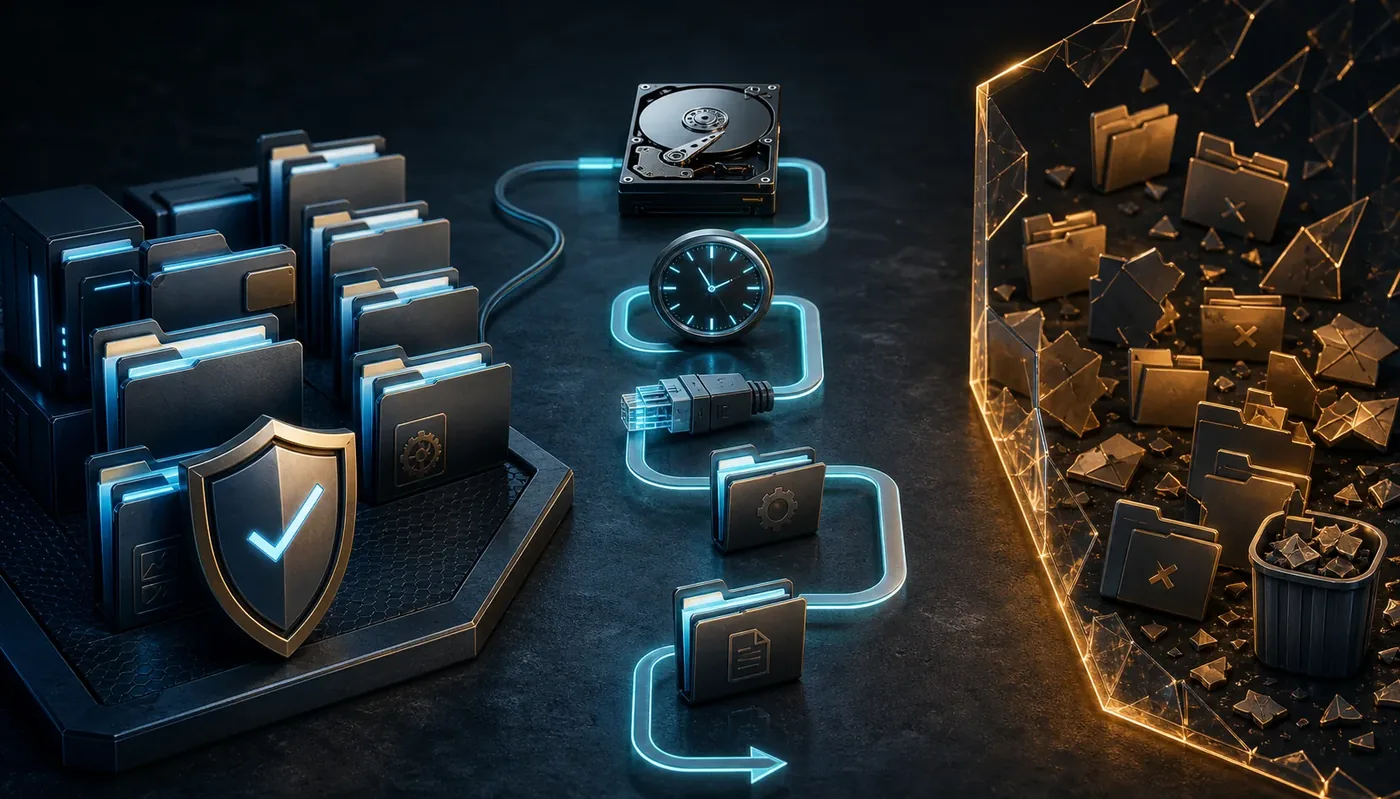
Repair path
A repair operation compares the files already in the selected game installation with the launcher’s expected state and replaces the parts that do not match. It is useful when the game folder is present, the launcher can reach its normal login window, and the symptom points toward local file integrity. A reinstall is a larger operation: it may remove or redownload the entire game and can hide whether the original fault was one damaged file, a permission problem, storage failure, or a network interruption.
The illustration shows a clean file set, a verification checkpoint, and a broken branch that should be repaired rather than deleted blindly. It is an editorial diagram, not a live XIVLauncher screen. The exact labels and placement can change between releases, so follow the current menu in your installation and the maintained Goatcorp documentation.
| What you see | Best first route | Why it matters | Use a different page when |
|---|---|---|---|
| The game files exist but a launch or update reports missing or damaged data | XIVLauncher Repair game files | A targeted verification can replace only mismatched parts | The launcher cannot reach the login or version check |
| The launcher says it cannot download patch files | Patch download troubleshooting | The transfer, storage, DNS, or security boundary may be failing | The downloaded files are present but a specific file fails validation |
| The launcher cannot check its boot version | Boot-version error guide | An early online check failed before the repair action is useful | The login window works and the game files are the suspected problem |
| XIVLauncher or FFXIV closes during startup | Crash troubleshooting | A process or plugin boundary needs isolation first | The launcher remains open and offers the normal login button |
| A modded installation was changed by TexTools | Repair with an explicit mod backup | The official release notes say repair can restore files to the original state | You are trying to preserve modified game assets without a backup |
First write down the account and platform context. Note whether the installation is tied to Steam or the standalone service, which game folder XIVLauncher is using, and whether the official launcher or the game itself can start. A launcher can be healthy while pointing at the wrong library, mount, or Windows folder. Repairing the wrong folder will not fix the active installation and may make the result harder to understand.
Next capture the visible symptom and the last successful step. Record the launcher version, the time of the attempt, the exact error text, and whether the problem began after an FFXIV patch, a drive move, a mod edit, a security-software alert, or a power interruption. Keep passwords, one-time passwords, session tokens, full account IDs, and private log lines out of any support post.
Check practical limits before starting: leave enough free space for replacement files, confirm the drive is connected and writable, close other tools that may hold game files open, and make a small backup of settings or mod work you understand. Do not delete the game, Dalamud, or plugin folders as a preparation step. The point of XIVLauncher repair game files is to make one controlled change while preserving evidence.

Read the outcome
A verification run is most useful when you treat its result as a new checkpoint. If the game launches after files are replaced, keep the launcher and game folder unchanged for one session and write down what improved. If the same error returns immediately, compare the message with the page that matches it: a patch download failure can point to the network or storage boundary, while a boot-version message belongs to an earlier launcher check.
This flow visual is a reused, compressed site asset that explains a diagnostic sequence rather than showing a real account or game screen. Use it as a reminder to separate source, check, repair, relaunch, and escalation. The useful evidence is still the text of the current launcher message and the exact step that changed.
The official release note warns that repair can restore a TexTools-modified installation to the original game state. That is helpful when modified assets are causing a launch problem, but it is also a boundary: a repair may remove changes you intended to keep. Back up work you understand, record which tools touched the game folder, and decide whether you can restore those changes through their maintained workflow after the base game is stable.
Dalamud plugins normally load through the launcher and are a separate troubleshooting layer from the core game files. If a clean game launches after repair but becomes unstable when one plugin returns, disable that plugin and use the current plugin listing or maintainer notes. Do not install random DLLs, copy a plugin folder from another computer, or add a custom repository just because the repair result was inconclusive.
A repair does not validate an unknown source, approve a plugin, or change FFXIV Terms of Service. It only addresses file consistency in the installation the launcher checks. Keep account credentials and OTP secrets out of plugin prompts and support logs.
Do not turn a single failed repair into repeated deletion. Stop if the launcher cannot identify the game path, the drive reports errors, the repair loops without a completion state, or security software quarantines a verified file. Capture the exact message and use the official XIVLauncher FAQ or the relevant focused guide. A full reinstall is a last resort that should follow a verified backup and a clear reason, not a generic forum command.
XIVLauncher is an independent community project, not Square Enix account support. This guide does not promise a fix for service maintenance, account restrictions, subscription problems, network filtering, hardware failure, or every plugin conflict. Use Square Enix support for account security and the official Goatcorp documentation for launcher behavior.
It is a launcher action that verifies the files in the selected FFXIV installation and repairs broken parts. The official Goatcorp 6.2.0 release notes say to right-click the login button and select Repair game.
Often that is the purpose of the action. It checks each file and replaces mismatched parts, so it can be much smaller than a full reinstall. It cannot fix a wrong game path, failing drive, blocked network, account issue, or every mod conflict.
The Goatcorp release note says the check can take about 1–10 minutes depending on how many files need replacement. Storage speed, download conditions, and the number of damaged files can change the practical time.
Open the normal login window and right-click the login button. The current release notes describe Repair game in that context menu. If it is not present, verify the launcher release and use the maintained FAQ instead of downloading a separate repair tool.
It can restore modified game files to the original state. The official release note specifically mentions TexTools, so back up mod work you understand and expect to reinstall or restore it through the current project workflow after the clean game works.
Read the new message and test once with optional plugins and overlays isolated. If the launcher crashes, use the crash guide; if it cannot download files, use the patch-download guide; if the boot version check fails, use the boot-version guide.
No. Deleting the folder removes evidence and turns a targeted repair into a full redownload. Confirm the active path, make a small backup, run the supported repair action once, and escalate only when a precise official instruction names a folder.
No. XIVLauncher is an independent community project. Use its official Goatcorp documentation for launcher behavior and Square Enix support for account, subscription, password, and security questions.