FFXIV Launcher Not Showing Login? Fix Missing Fields Safely
When the FFXIV launcher opens but the Square Enix ID, password, or one-time password fields are missing, treat it as a login page loading problem first. Use the least destructive checks below before reinstalling or deleting configuration files.
The phrase FFXIV launcher not showing login describes a launcher window where the Square Enix ID, password, or one-time password fields never render. Wait once for the page to finish, then close only duplicate launcher processes and test the official source, system time, network, and security boundary. Hold Shift while opening XIVLauncher if you need to bypass automatic login and expose the normal login screen, as the official FAQ documents.
Do not enter your password into a random mirror, use a free proxy, or delete a boot configuration file just because an old forum post suggests it. A missing login form can be a temporary service or embedded-page failure, while a red world icon, a named version error, an OTP rejection, and a process crash each require a different path.
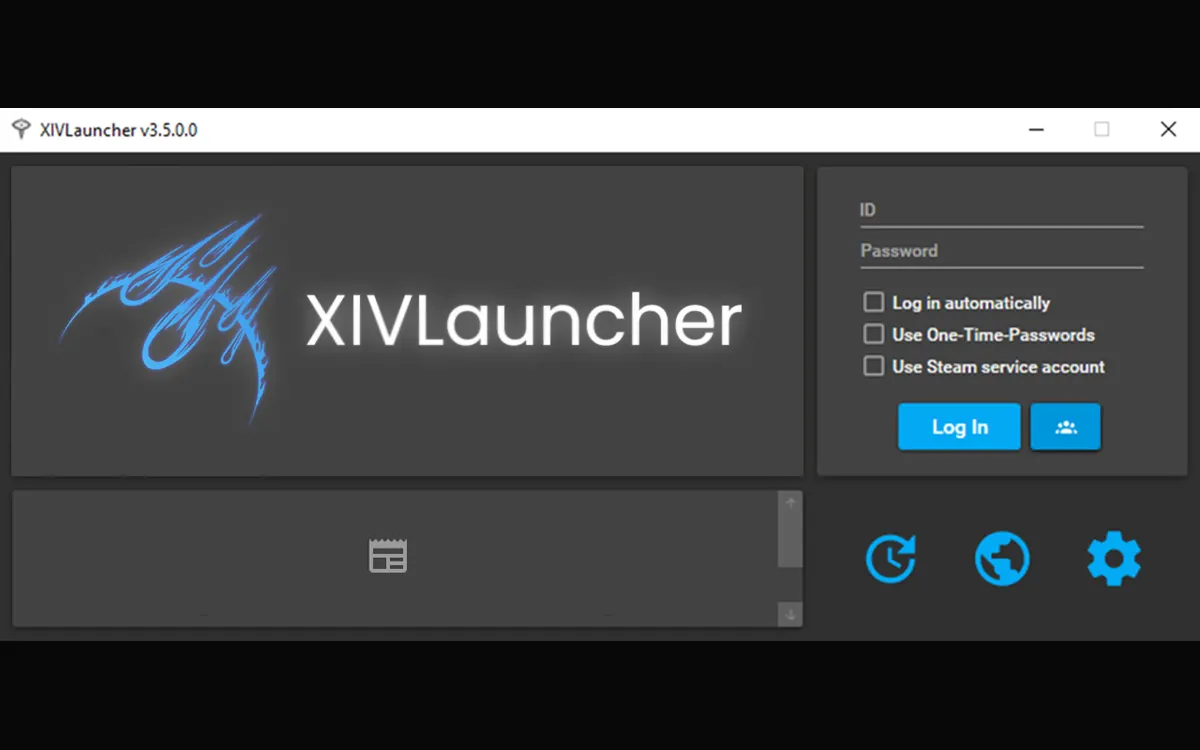
Existing site product screenshot for orientation; never share a screenshot containing account credentials.
What you should see
A missing form is different from a failed login
A normal login state has visible fields for the Square Enix ID and password, with an optional one-time password field when the account uses an authenticator. If the window is blank, shows only a background, or never presents those controls, the launcher has not reached the credential step. If the fields are visible but a submit produces a red world icon or an error, the page loaded and the failure moved to authentication or network access.
The existing site screenshot is included as a visual orientation only. It is not a live account screen, does not contain credentials, and does not prove that every current release uses the same layout. Always trust the current official project FAQ and Square Enix account pages for account actions.
Identify the exact login symptom
What you see
Likely boundary
Start with
Use another guide when
Launcher opens with no ID or password fields
Login page or embedded content did not finish loading
Wait once, bypass autologin with Shift, check network and clock, then test a clean launch
The game client crashes after Play
Fields are visible but the red world icon appears after submit
Authentication, service, or network response
Read the official FAQ, check status and account notices, and capture the exact message
The message says boot version or patch files
Only the OTP field is rejected
Authenticator timing or account registration
Use the OTP guide and verify device time
The whole login form is absent
The window is completely black or closes
Embedded page, security software, overlay, or process crash
Test the launcher boundary without overlays and inspect the official troubleshooting path
A named patch or version error is visible
Steam launches the game but XIVLauncher login is missing
Steam account handoff or platform-specific launcher state
Keep Steam and standalone account paths separate and check the official support notes
You are on Steam Deck or Linux and need platform setup
Editorial layer diagram reused from the startup-crash guide; first identify which handoff failed.
Separate the handoffs
A blank login panel, a rejected login, and a crash are different failures
The launcher can fail before the login page appears, after credentials are submitted, or after it hands the game process control. Identify the first point that changes. A game-process or plugin problem does not explain a missing form by itself, and a visible form means the page-loading step already completed.
Use this layer diagram as a map for choosing the next guide, not as a screenshot of a live process or a claim about the current launcher interface.
How to fix an FFXIV launcher with no login fields
1. Wait once, then record the state. Give the launcher a short, single load attempt. Note whether a logo, world icon, error text, or blank panel appears. Repeatedly clicking or force-closing the window removes useful evidence and can leave a second process running.
2. Bypass automatic login safely. Hold the Shift key while opening XIVLauncher and keep holding it until the main window appears. The official FAQ lists this as the way to disable autologin temporarily. This helps distinguish a hidden credential flow from a page that cannot load at all.
3. Close duplicate processes only. Exit the visible launcher, then open Windows Task Manager and look for a remaining XIVLauncher or FFXIV process that you recognize. End only the matching process, not unrelated Windows services. Reopen once and compare the result.
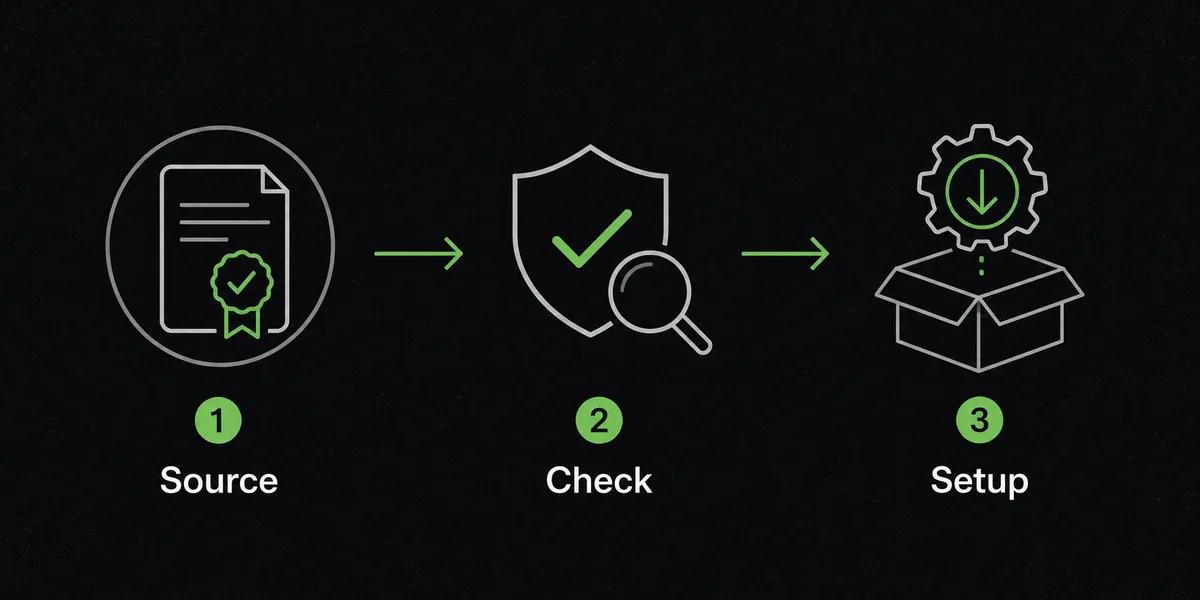
4. Verify the source and current release. If the problem started after an installer change, confirm that XIVLauncher came from the official Goatcorp GitHub release. Do not download a repacked executable to fix a missing form. The official FAQ says releases are built from the open-source project; static guides can become stale.
5. Check time, network, and security controls. Enable automatic Windows date, time, and time-zone synchronization. Check DNS, VPN, proxy, firewall, antivirus quarantine, and controlled-folder access. Compare one trusted network if practical, but never use an unknown free proxy for account credentials. A connection or certificate problem can look like an empty login page.
6. Remove optional hooks for one test. Disable Discord, Steam, GPU recording, RGB, monitoring, ReShade-style hooks, and recently changed plugins for one clean launch. Restore one component at a time only after the base login screen works. Optional layers should not be treated as proof that the launcher installation is corrupt.
7. Capture the message before repair. Write down the launcher version, standalone or Steam license, whether the login form appears after Shift, the last visible icon, the time of the attempt, and any antivirus or Windows event. Keep passwords, OTPs, tokens, account IDs, and private file paths out of reports.
Editorial source-check visual reused from the site; verify the current official release before running an installer.
Source and account boundary
Check the source before you change the account flow
A login screen is a sensitive boundary. The official FAQ explains that XIVLauncher is designed to replicate the official login and authorization process and uses secured project, GitHub, and official FFXIV domains. That context supports checking the source and network path, not handing credentials to a third-party workaround.
Use the project FAQ for launcher behavior and Square Enix support for account recovery, subscriptions, or security tokens. Missing fields alone cannot prove that an account is locked or a service is available.
What not to do when the login page is blank
Do not type credentials into a page or executable whose project owner you cannot verify. Do not disable antivirus permanently, create a broad firewall exception, or use an untrusted proxy just to make fields appear.
Do not blindly delete FFXIV_BOOT.cfg, the game directory, settings, or plugin folders. Older community threads mention resets, but those posts are not a current universal fix and can erase logs. Preserve evidence and use a documented repair instruction only when the official FAQ names the target.
A missing form is different from an OTP error, a crash, or a named boot-version or patch-download message. Use the focused page for the state you actually see.
Steam, Linux, and account support boundaries
Steam can change the handoff between the game license and launcher. Keep Steam and standalone accounts separate, and record whether the official Steam client works. Steam Deck and desktop Linux use a different setup; follow the official Linux guide instead of applying Windows folder advice.
If the same credentials fail in the official launcher or Square Enix account pages, use official support for password, token, subscription, or service issues. Never post a password, OTP, recovery code, or session token.
A clean login only shows that one optional layer or route changed the result. Restore changes one at a time.
Account safety warning
XIVLauncher is a third-party community project, not a Square Enix account-support channel. This guide does not guarantee account safety, service availability, or compatibility with every plugin and platform. Keep the official source visible, follow current project guidance, and stop before entering credentials when a page or file looks different from the expected official flow.
Why is my FFXIV launcher not showing the login fields?
The login page may still be loading, automatic login may be hiding the normal form, a network or security control may block embedded content, or a duplicate process may be stuck. Hold Shift while opening XIVLauncher, test one clean launch, and record the last visible state before changing files.
How do I disable XIVLauncher autologin?
Hold the Shift key while opening XIVLauncher and keep holding it until the main window appears. This is the official FAQ method for temporarily bypassing automatic login.
Should I delete FFXIV_BOOT.cfg when the login form is missing?
Do not make that your first step. Older forum posts mention configuration resets, but deletion can remove useful state and is not a universal current fix. Preserve evidence and follow a precisely documented official repair instruction instead.
What if the login fields appear but I see a red world icon?
That is a different state: the form loaded, but login or the service/network response failed. Capture the exact message, check the official XIVLauncher FAQ and service notices, and use Square Enix support when the official client or account pages fail too.
Is an OTP problem the same as missing login fields?
No. OTP troubleshooting starts only after the login form is visible. Use the current code from the authenticator registered to the same Square Enix account and follow the separate OTP guide for timing or registration issues.
Can a plugin or overlay hide the XIVLauncher login screen?
An overlay, monitoring hook, or recently changed plugin can interfere with a clean launch, but it is not proven until a controlled test shows a difference. Disable optional components once, test the base launcher, and restore them one at a time.
When should I use the FFXIV launcher crash guide?
Use the crash guide when the launcher or game process closes, freezes, or crashes. Keep this page for a window that remains open but never shows the login fields or login page.
Where can I get current official help?
Start with the official Goatcorp XIVLauncher FAQ for launcher behavior and troubleshooting. Use Square Enix support for account, subscription, password, and security-token issues.